
Using D&D Beyond Containers with the Season 11 Rules
The Season 11 rules for Adventurers League introduced a change to the magic item limits that were first introduced in Season 9. The new rules allow you to keep as many items as you find, but you can only take 1, 3, 6, or 10 permanent items with you into an adventure based on your character's tier. Additionally, there are now limits on Common and Consumable items that are new to this season - common items are limited to 5 across the board, while consumables are limited to 5 in Tier 1, and 10 in all other tiers. On top of this, consumable items now replicate the same way permanent magic items do, so everyone gets a copy of everything found in the adventure.
As you collect items things are likely to get a bit unwieldy. You don't have to keep everything you find if you don't want to, but if you want to horde things like a dragon here's an easy way to use D&D Beyond's new container system to make your life easier, and make it simple for DMs to check what you are bringing to the table.
First, a note: The container system is new and needs some quality of life features added. Currently, even if you use a Bag of Holding it doesn't remove the weight of the items in the container from your sheet - that means that if you use this method you will pretty much always be encumbered on your sheet. It should however be pretty easy to eyeball it to figure out if you are actually in danger of going over weight (not that many people really pay attention to that).
Here's an example of what we're shooting for:

As you can see, we have several categories of items, including: "Active Common Items", "Active Consumable Items", and "Active Magic Items". Also, you can see "Inactive Items" in the list of filters above the items. (Also "Fake Items" which I use as a bucket for any items I have to create to emulate certain effects on the character sheet or using Beyond20 to roll dice - such as a copy of an item with adjusted stats used for Great Weapon Master attacks.)
Each of these categories is created by adding any container item to your character, then customizing it to match the purpose you want, like so:
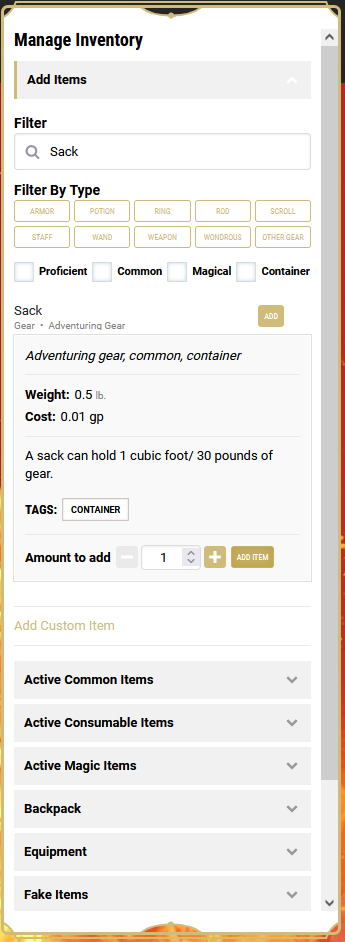
Each of the containers you see at the bottom of the image started life as a simple Sack, but you can select any container for this. Simply add the container to your sheet - when you do so the new container will appear on in the list of filters on your sheet, like so:
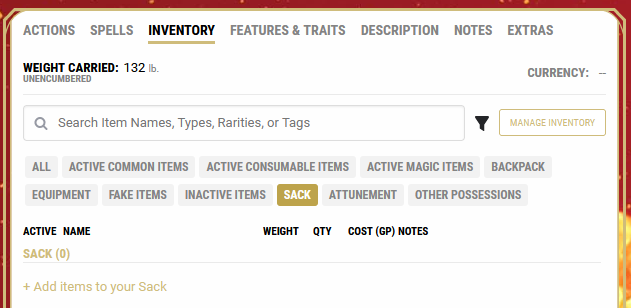
The next step is to click the label where it says "Sack (0)" - this will open the edit screen for the container itself. From there, open the "Customize" dropdown:
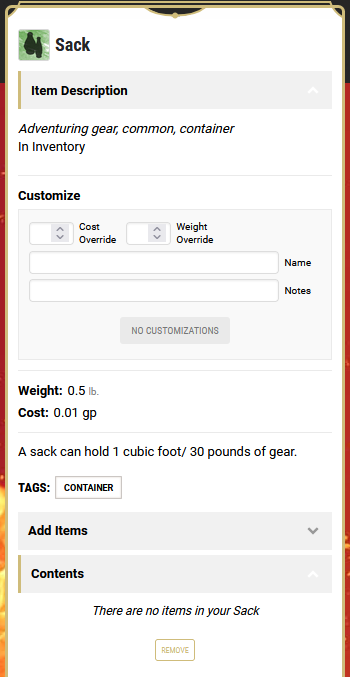
In the name field, type "Inactive Items" (or any of the other categories I mentioned previously). This will change the container to use the name you entered in pretty much all places it appears. You can use the notes field to remind yourself of the item limits for that category if you want, but this is not displayed all the time and may not be of much value. I also suggest entering a "0" in the Weight Override field, particularly if you are using a heavy container like a chest - these containers aren't real equipment and shouldn't contribute to your character's encumbrance.
Now that you have at least one container, you can move your items into it easily:
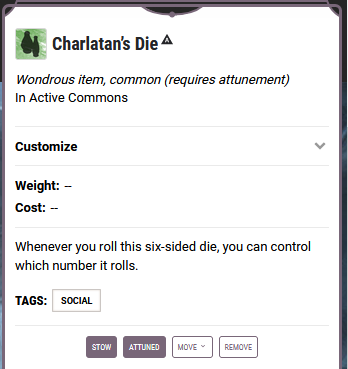
Just click the "Move" button...
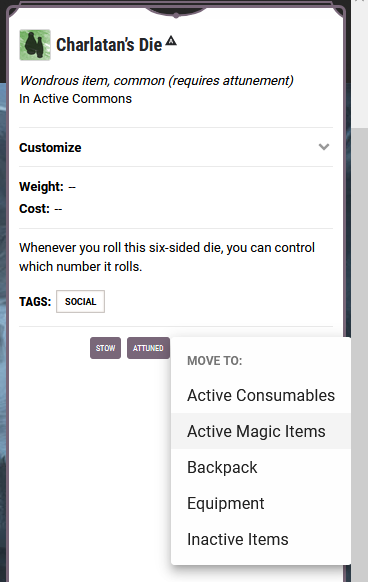
...And select the container you want to put the item in. You'll notice that when you add an item to a container it will provide a handy count of how many items you have in it, letting you easily verify you are within the limits of each category of item.
Repeat as needed for each of the different types of categories you want to create, and for each item you need to move. Note that things like attunement and the equipment that shows up on the "Actions" tab of your character sheet are unaffected by container placement. Those look at the "Equipped" checkbox and the attunement UI at the bottom of the equipment list per-usual.
In all this takes only a few minutes to set up, and should save you a lot of time in the long run. Don't forget you still need to log any items you gain, but you can manage them entirely through your character sheet interface using this method.